A studio needs two adjustable laptop stands. You know the model you want, so the job is to find the price for a single stand and put the pair on the client’s quote. With the CostForge quote catalogue, you can do that from the draft, with the supplier listing beside the amount you enter.
This example follows a UK catalogue search on 27 November 2026. You can use the same steps for building materials or software. For a subscription, you also choose how many billing periods the quote will cover.
Check what your team has already found
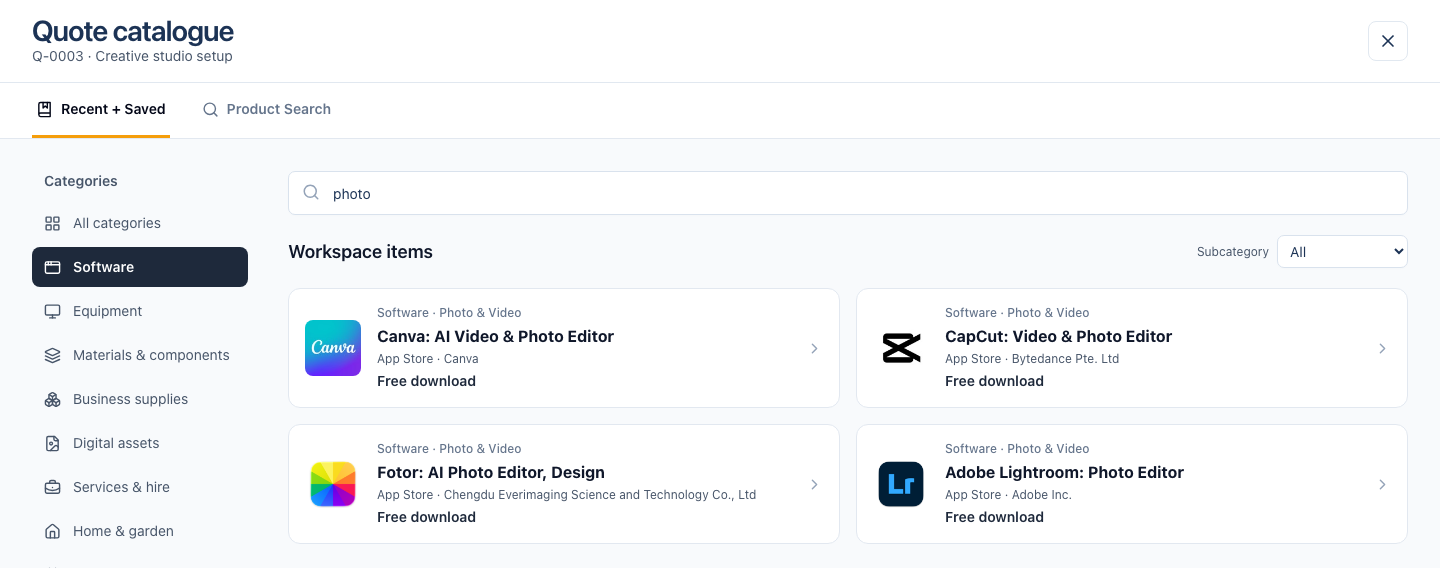
Open the project’s draft quote. Under Line Items, select Search catalogue. The first tab, Recent + Saved, contains the priced offers your workspace has bookmarked or added to quotes, with recently used items first. Type a name or choose a category and subcategory to narrow the list. Open a match to review it for this job.
Find the stand and check what the price buys
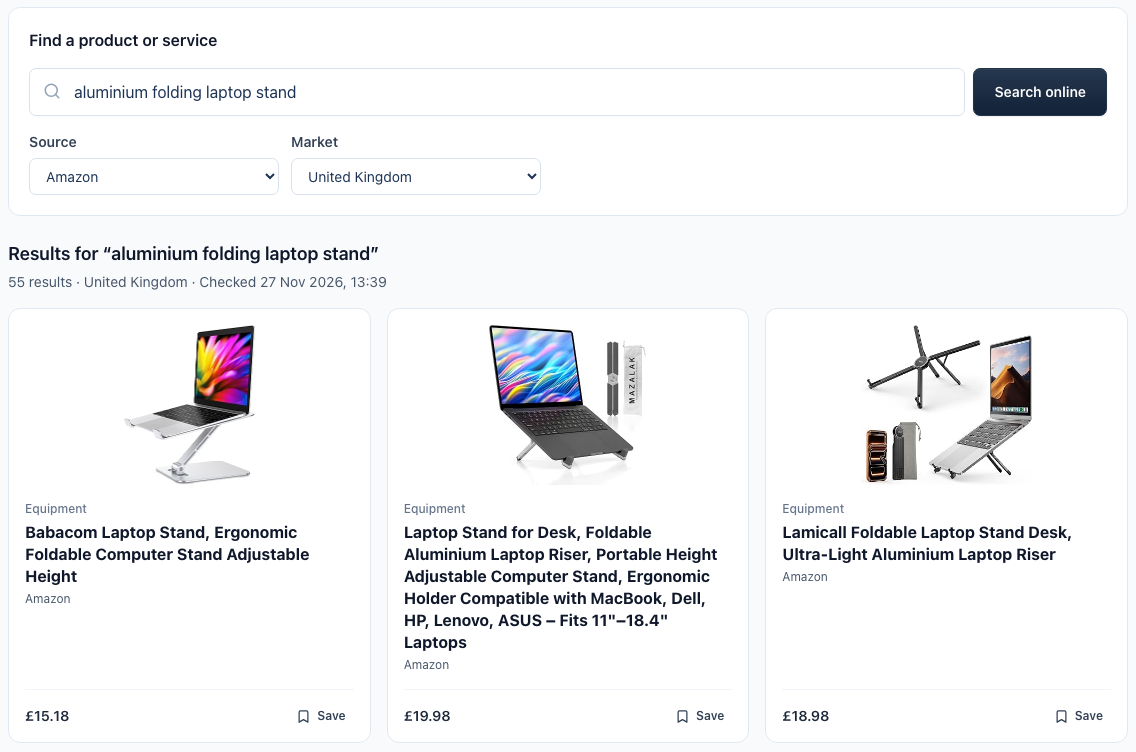
Switch to Product Search, enter aluminium folding laptop stand, set the market to United Kingdom and choose Amazon. Select Search online. In the example, the first stand was listed at £15.18. Each result shows the source and listed price. If you need another page, use More from when the provider offers it.
Open the listing and select View source to check the model and what one unit includes. For a building material, the same check might tell you whether the supplier sells hinges singly, in pairs or by the box. If you want to come back to the listing, select Save. The bookmark is available to your workspace, including when you switch from a phone to a desktop.
Confirm the cost and add the pair to the draft
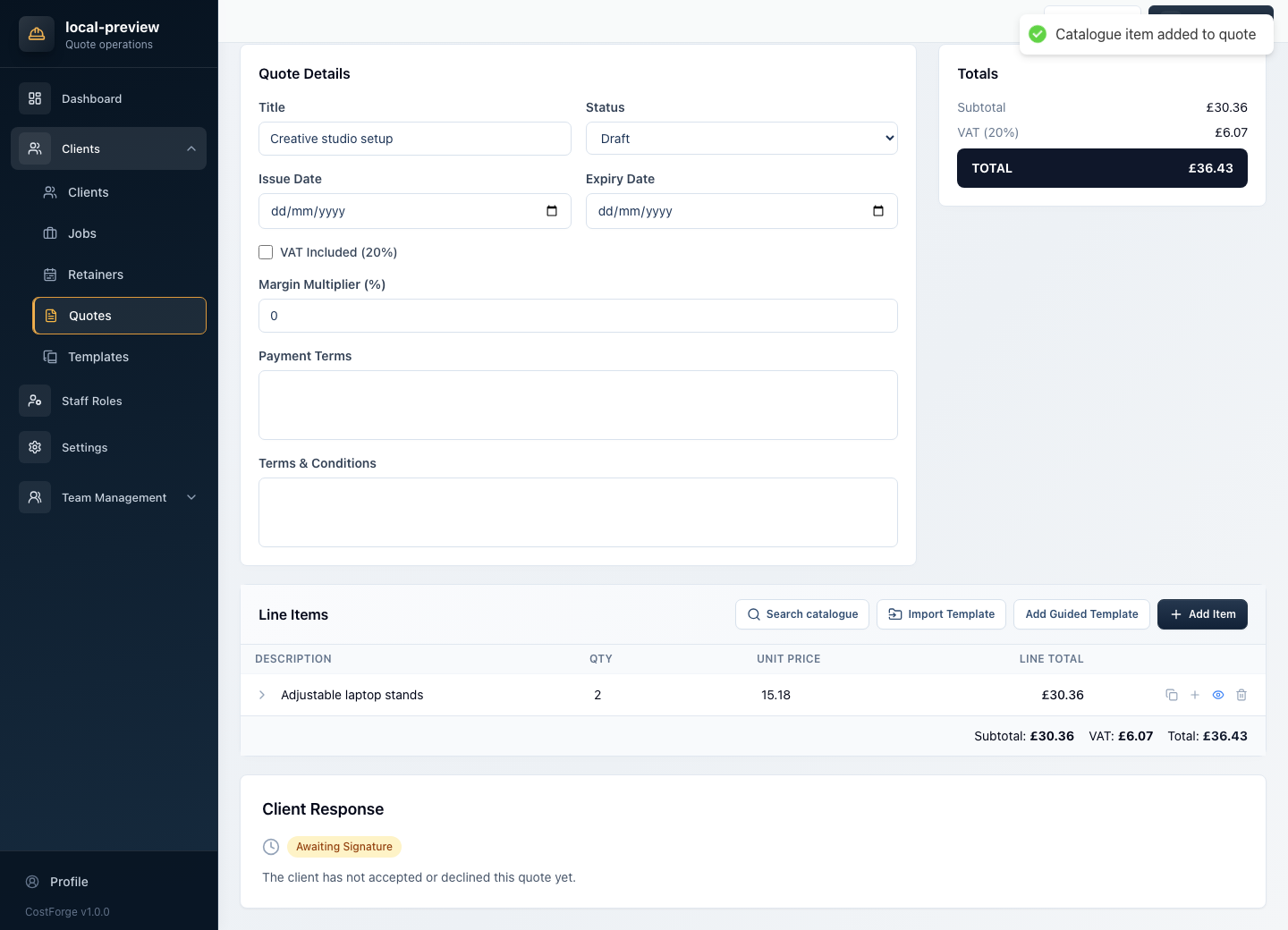
Give the item a name the client will recognise. Here we use Adjustable laptop stands and describe them as two stands for the studio workstations. Set the quantity to 2 and the price basis to One-off.
Read the currency and tax basis beside Confirmed unit cost. This draft asks for GBP excluding VAT. Choose Use listed when the supplier gives one clear amount in the quote currency and you have checked the tax basis. For a price range, confirm the cost of the exact variant you intend to supply and enter it yourself.
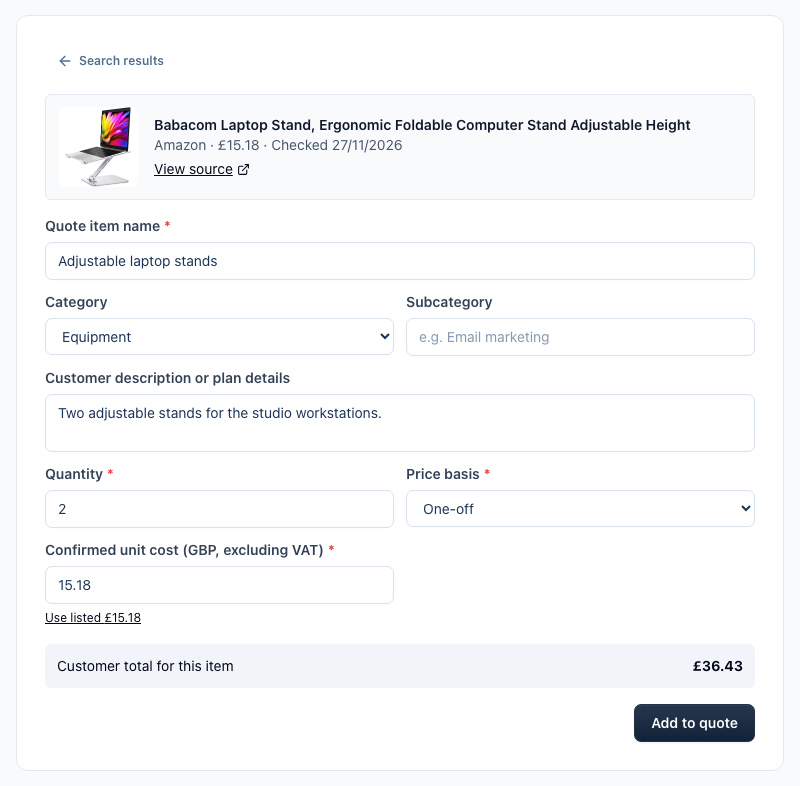
Two stands at £15.18 each give a £30.36 subtotal. With zero margin and 20% VAT in this draft, VAT is £6.07 and Customer total for this item is £36.43. Choose Add to quote. The stands now appear under Line Items. A later search can return a different offer while this quote keeps the cost you confirmed.
Price a software licence by seat and period
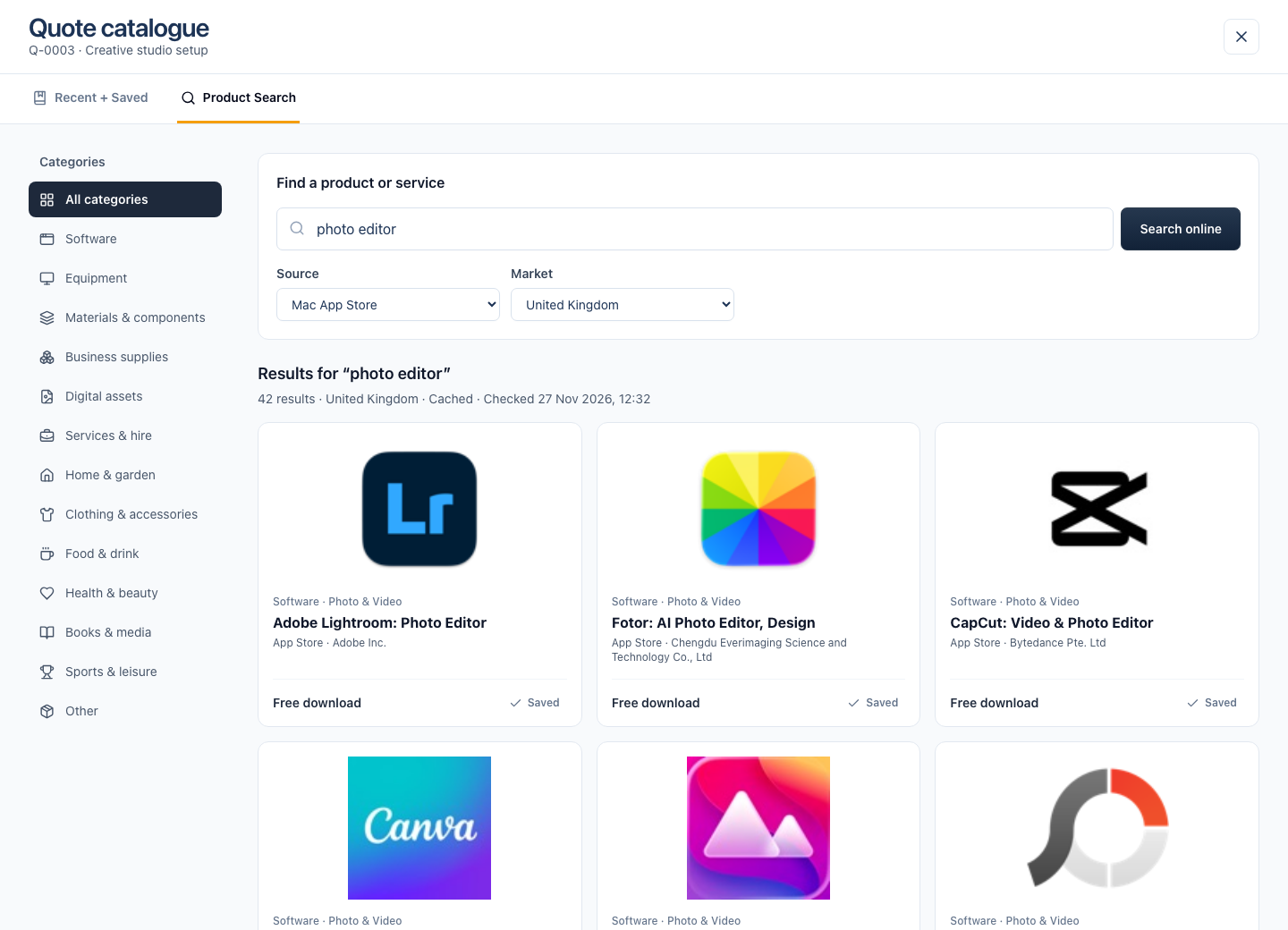
Suppose the studio also asks for photo-editing software. Search the Mac App Store for photo editor. A result marked Free download tells you the cost to install the app. Use the publisher’s terms to check whether the features the studio needs require a paid plan.
For example, suppose the publisher confirms £12 per seat per month and the client wants three seats for six prepaid months. Set the quantity to three, choose the monthly price basis and enter six periods. The licence contributes 3 × £12 × 6 = £216 before the quote’s tax and margin. For a supplier that only offers a price on request, use Add Item once you have the agreed amount.
When to run a fresh search
A public search result can be reused for 24 hours from the successful lookup. Cached and the check time tell you when that happened. Repeating the search keeps the original expiry. The first matching search after expiry fetches fresh results. Your workspace’s bookmarks and quote selections stay in that workspace.
Each uncached source and results page uses one lookup. The daily allowance is configurable and defaults to 25 new lookups per workspace. Typing, browsing saved items and reviewing a card use no search credits. All sources checks the providers available for your market and category. Best match picks one. If a provider fails, you can keep browsing the other results and select Retry beside the affected source.
To price your next item, open CostForge and choose Search catalogue in a draft quote’s line items.