Find supplier prices inside your quote
Look up materials, equipment and software as you price a job. Confirm the supplier’s unit cost, then add an editable line straight to your draft.
In a draft quote, open Line Items and select Search catalogue.

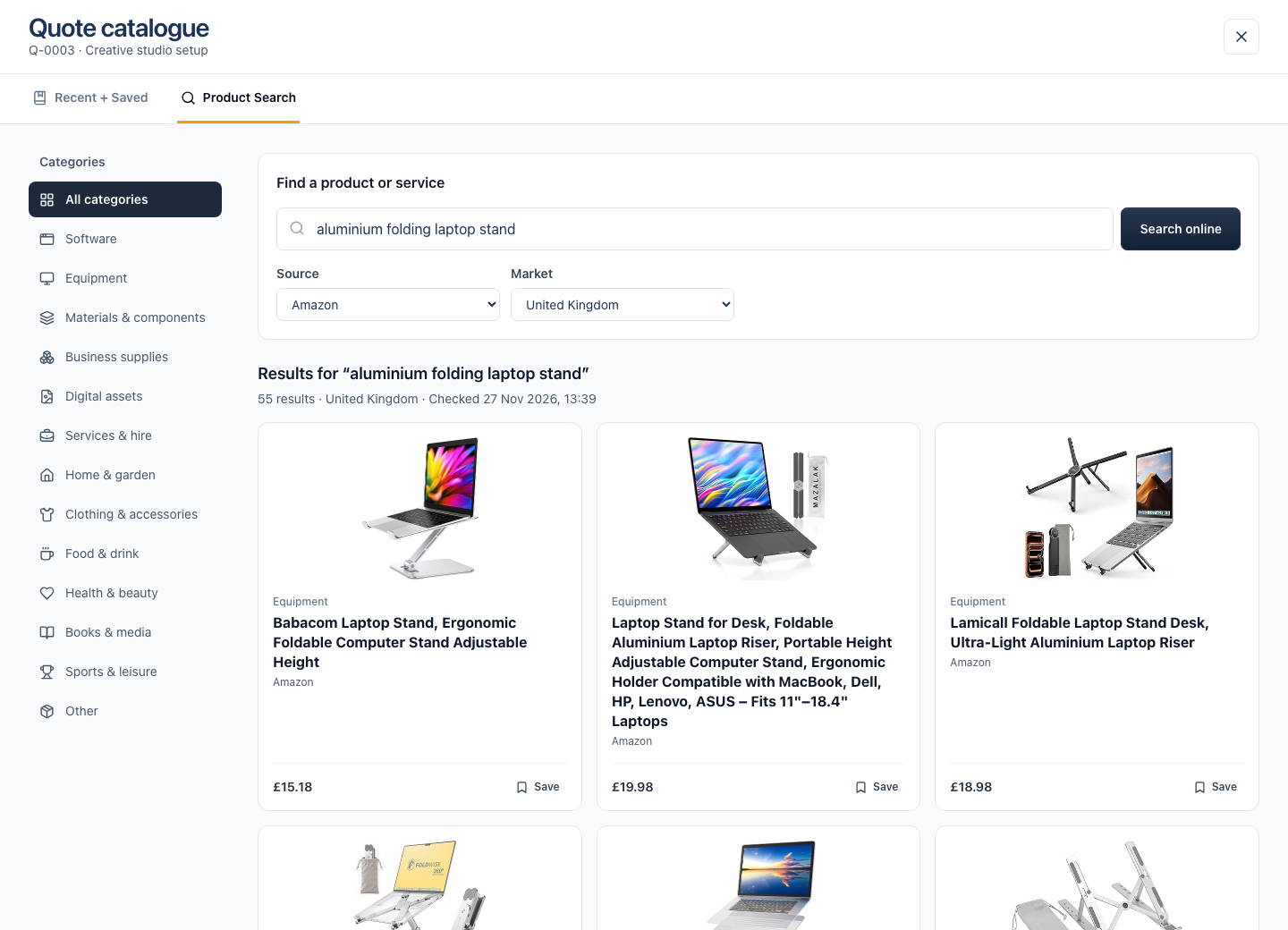
Where to look for a price
Choose your market in Product Search. Search across the available sources, let Best match pick one, or go straight to a supplier you know.
- Materials & equipment
- Compare retailers on Google Shopping or find a listing on Amazon or eBay. Check whether the price buys one fitting, a pair or a whole pack.
- Software & apps
- Find a plan on the vendor’s site or an app in the iPhone or Mac App Store. A free download can still have a paid licence.
- Digital assets & services
- Look for a published price and check the supplier’s terms. For bespoke work, use Add Item once you have an agreed cost.
Turn a supplier listing into a quote line
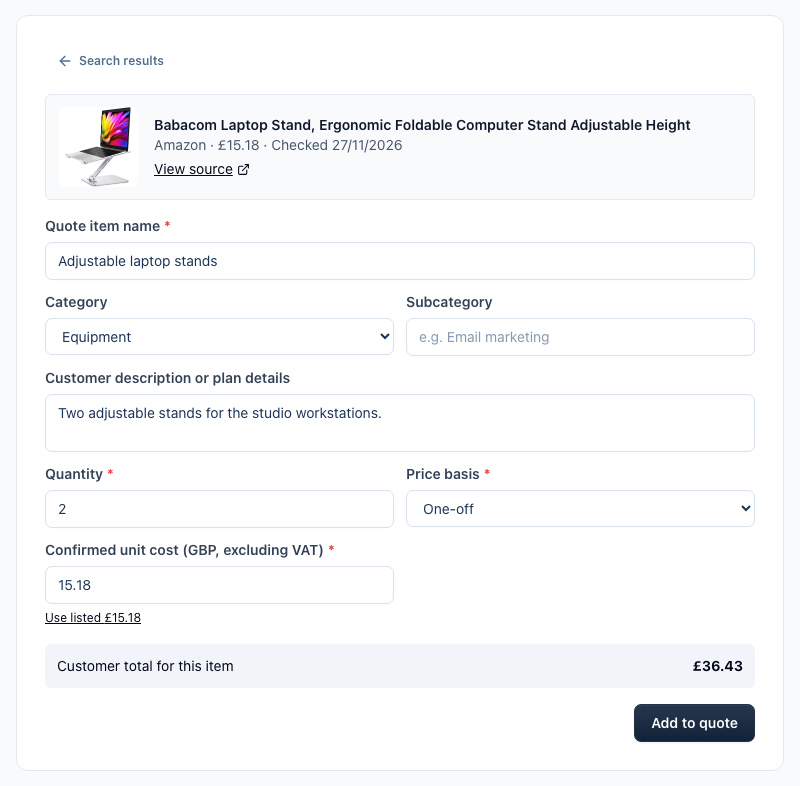
A studio needs two adjustable laptop stands. The estimator gives the line a name the customer will recognise, enters the quantity and confirms the unit cost in the quote currency. For a subscription, they can also set how many months or years the price covers.
- 2 stands at £15.18 each
- £30.36
- VAT in this example (20%)
- £6.07
- Customer total
- £36.43
This UK example uses the price checked on 27 November 2026 and zero margin. Select Add to quote to keep the confirmed price on the draft, even if a later search finds a different offer.
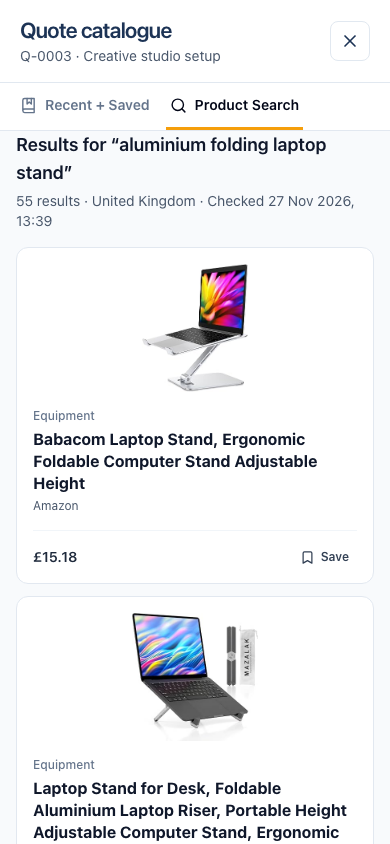
Save it on site. Find it again at your desk.
On a phone, tap Save beside a listing while you’re with the customer. Back at your desk, Recent + Saved opens first and shows the items your workspace has bookmarked or used on quotes.
Search by name or filter by category. A bookmark keeps the listing handy. The draft total changes when you review the item and add it to the quote.
Follow the studio quote step by step