When an agency quotes a monthly email campaign, two answers do much of the pricing work. How many emails does the client need? Will the agency design them? With guided quote templates, an estimator can enter those answers and see the writing, design and preparation costs together.
Here’s how to build that template, check a price you know and use it on a draft quote. The screenshots show a demonstration workspace. Your workspace has its own questions, published templates and rates.
Set up the questions your team asks
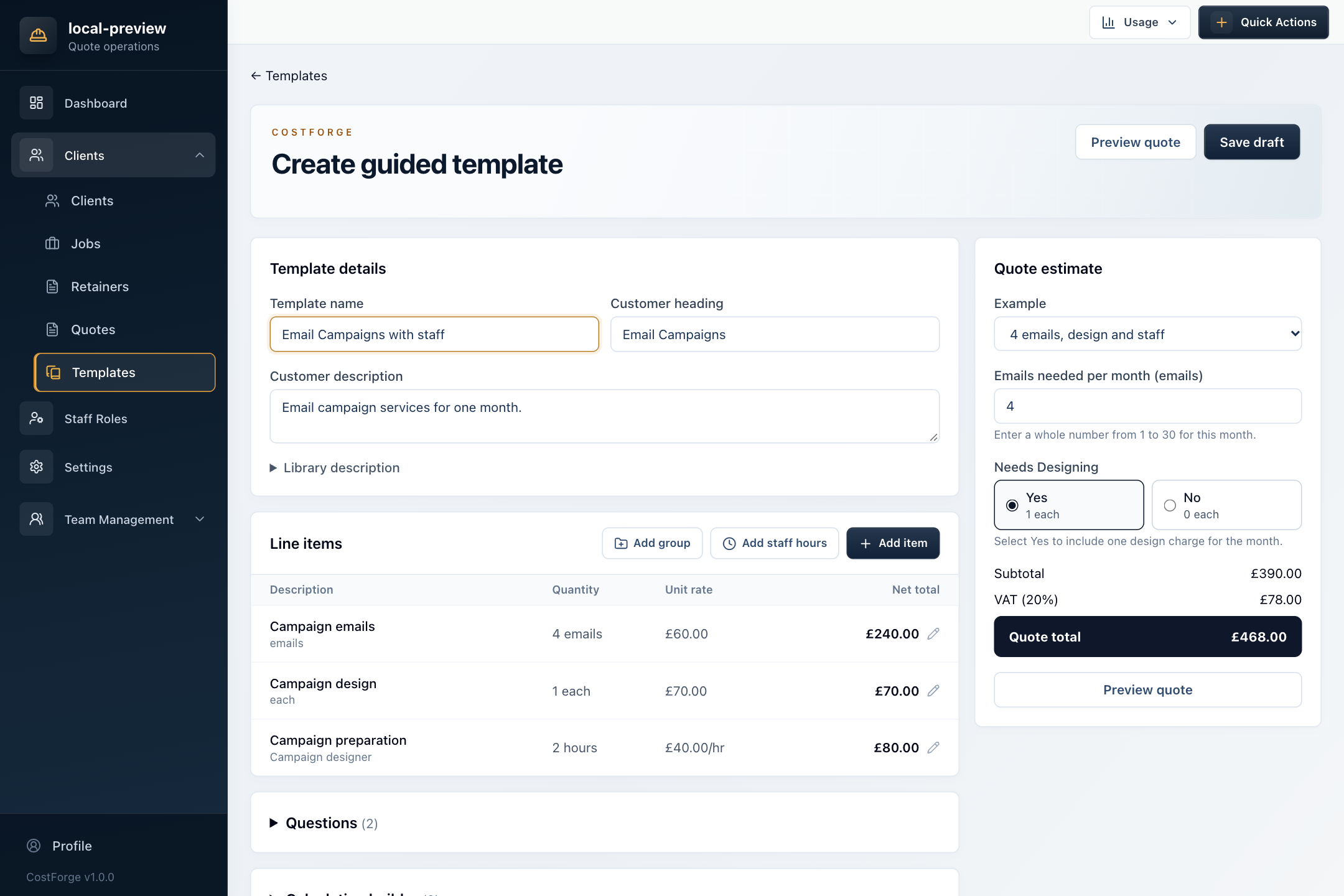
Open Clients → Templates, set Template Type to Guided and choose Create guided template. You can start blank, choose an example or reuse a saved item template. If you reuse an item template, confirm whether its unit prices include tax.
Give the team a name they can find in the library, such as Email Campaigns with staff. Enter Email Campaigns as the customer heading and Email campaign services for one month as the description.
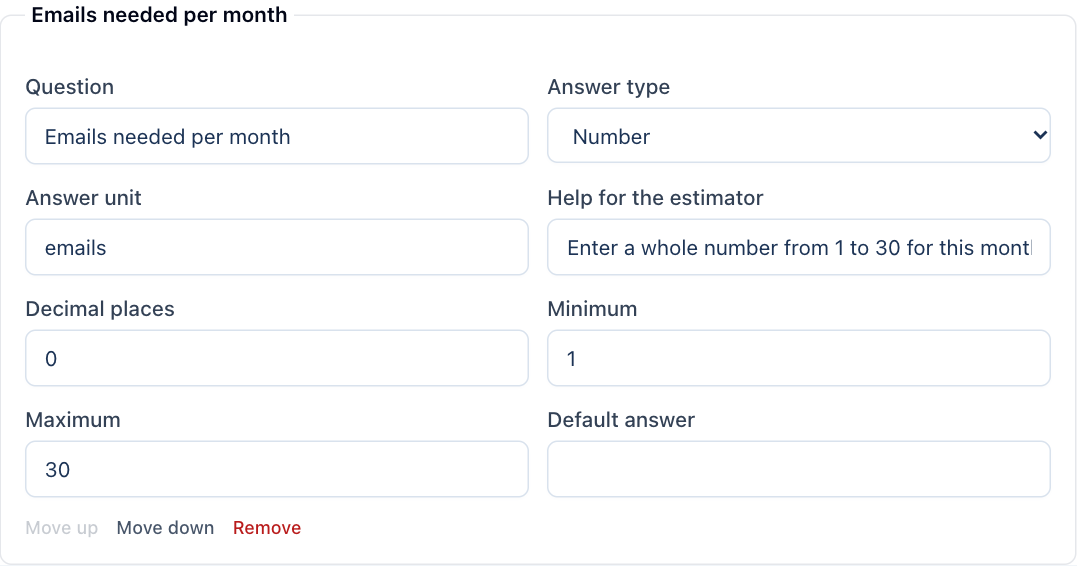
Under Questions, add a number question for the emails needed per month. Use whole emails, set a range of 1 to 30 and leave the default blank so the estimator enters the quantity for each job. Add a yes/no question for design. Set Yes to 1, No to 0 and choose Ask each time.
Give each answer a price
Add a regular item for campaign emails. Set its Quantity source to the email count and enter a net rate of £60 per email. For the design item, use the yes/no answer as the quantity and set a £70 rate. Selecting Yes adds one design charge for the month.
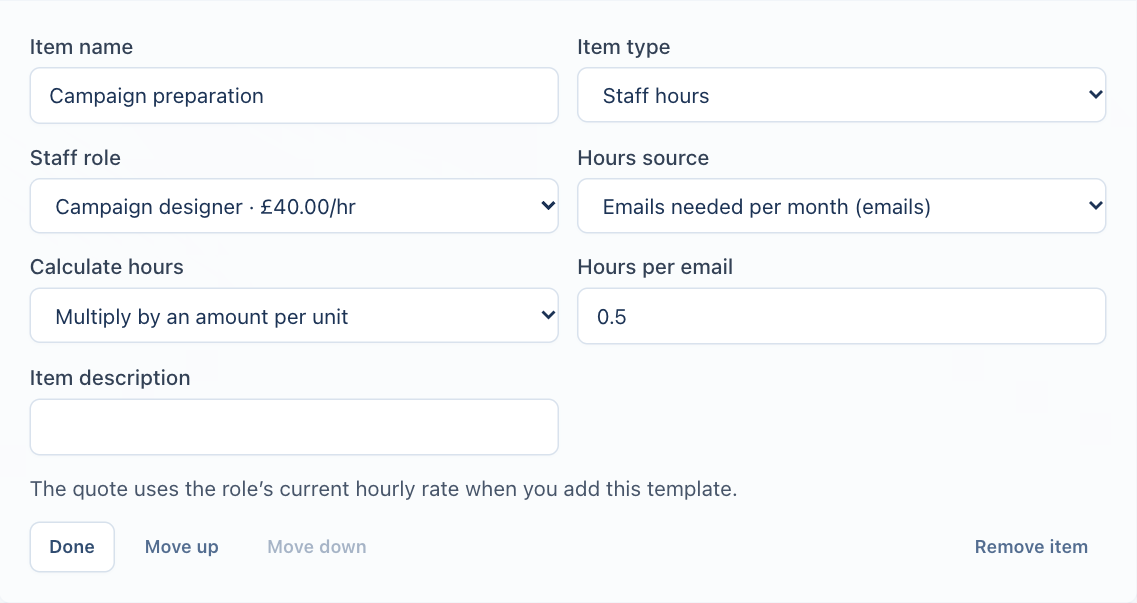
For preparation, choose Add staff hours and select an active staff role. Use the email count as the hours source and multiply it by 0.5 hours per email. CostForge uses the selected role’s current hourly rate when the package is added to a quote. The estimator can pick another active role for that job.
For a job with several allowances, the calculation builder can feed the result of one rule into the next. See how floor area, waste volume and skip capacity fit together in the shop-fitting example.
Check a known result before publishing
Try four emails with design in Quote estimate. The emails cost £240, design adds £70 and two hours at £40 add £80. Choose Preview quote to compare the customer’s description and price with the internal breakdown.
Under Test an example, give the example a name and select Save expected result. The expected base cost here is £390. With zero markup and the demo workspace’s 20% VAT, the customer total is £468.
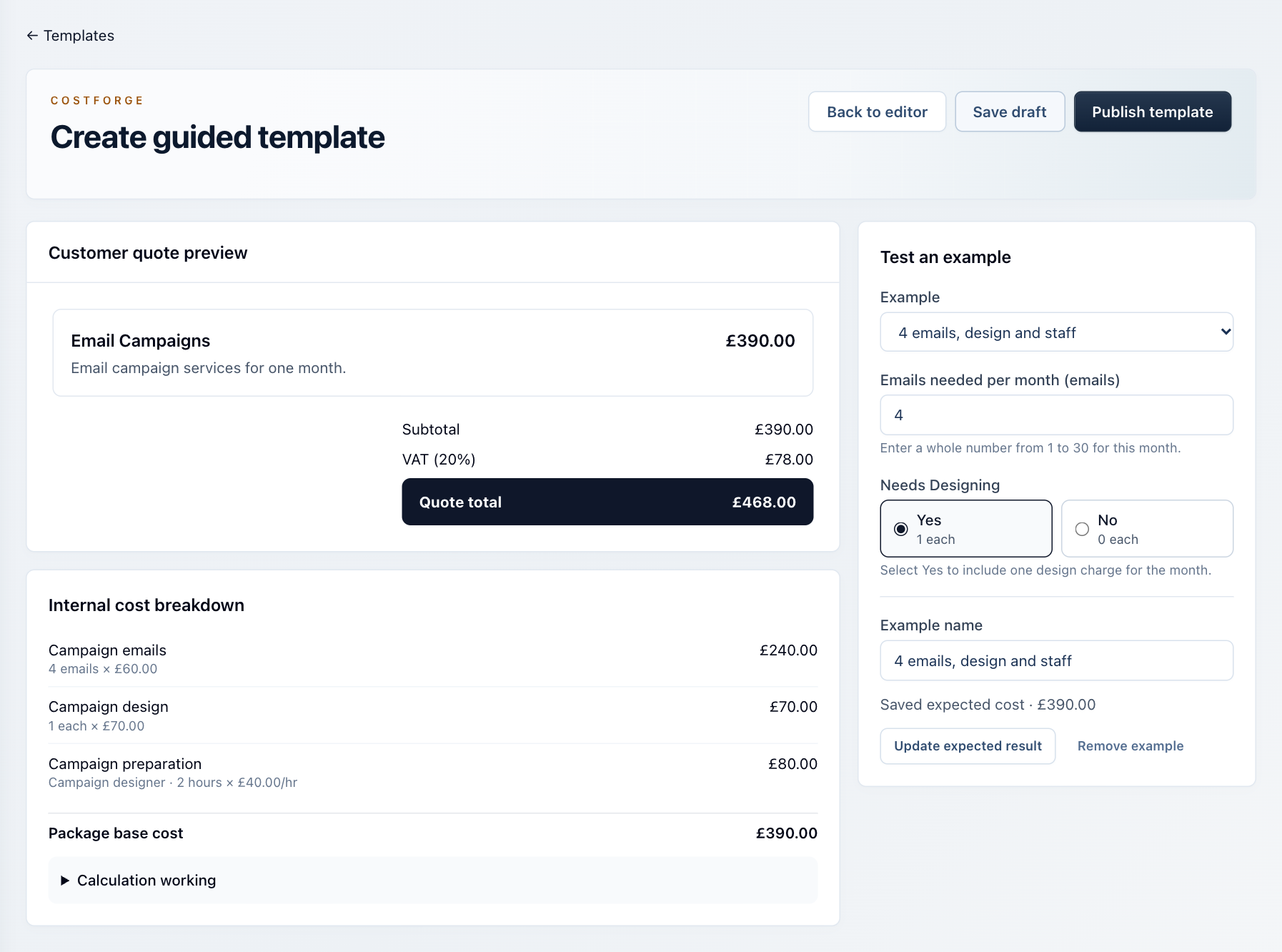
Try the smallest order, the largest and a campaign without design. Publish template checks every saved example. All must pass and at least one must have a positive base cost. If you intentionally change a rate, review the new figure and update the expected result. The team can keep quoting from the published revision while you edit the next draft.
Start a quote with the published template
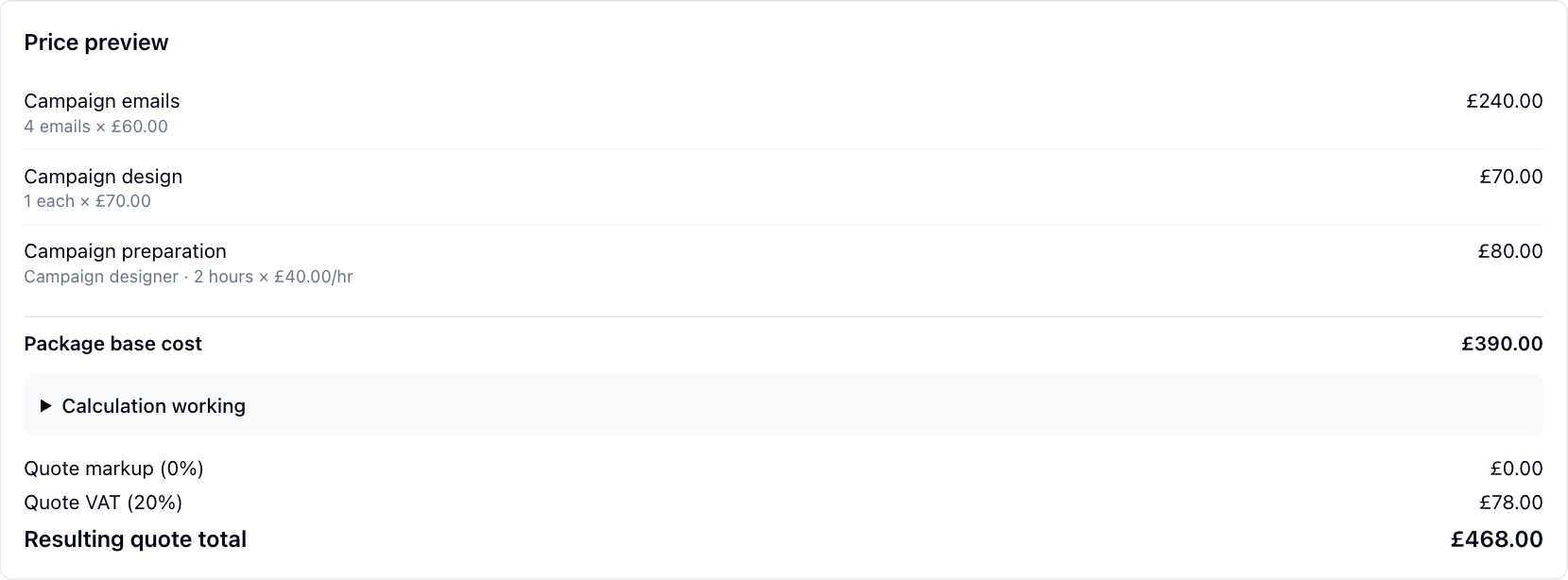
In Clients → Quotes → New Quote, choose Create Quote from Guided Template. Select the job, enter a title and pick the published template. You can also start from its library card. Enter the answers, confirm the staff role and select Preview price. Check the items, markup, VAT and resulting total, then select Create Quote to save the draft.
Add a second package to the same draft
Suppose the customer also wants a smaller campaign. From the draft’s Line Items, choose Add Guided Template. Pick the base campaign template, which has no preparation line. One £60 email and one £70 design fee add £130 before VAT. Preview price shows a £156 increase and a new quote total of £624. Choose Add to Quote to include it.
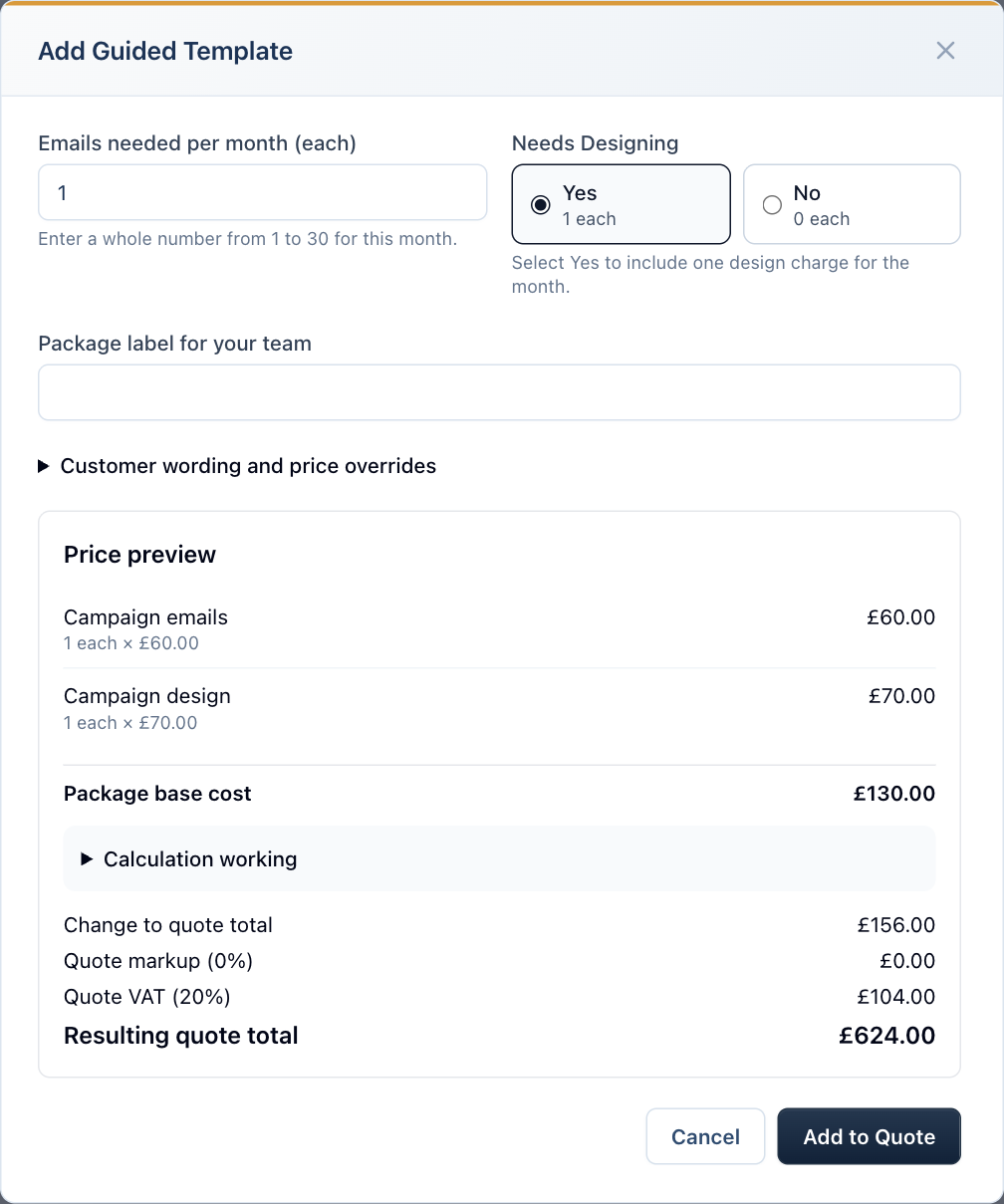
Each use is a separate package with its own answers. You can apply the same template twice for two sites, combine different templates or add ordinary line items for one-off work.
Review the working when the scope changes
Open View working on a saved package to see the applied revision, quantities and staff rate. On an editable draft, choose Edit answers to change four emails to six. Preview and apply the change to recalculate the email count and preparation hours for that package.
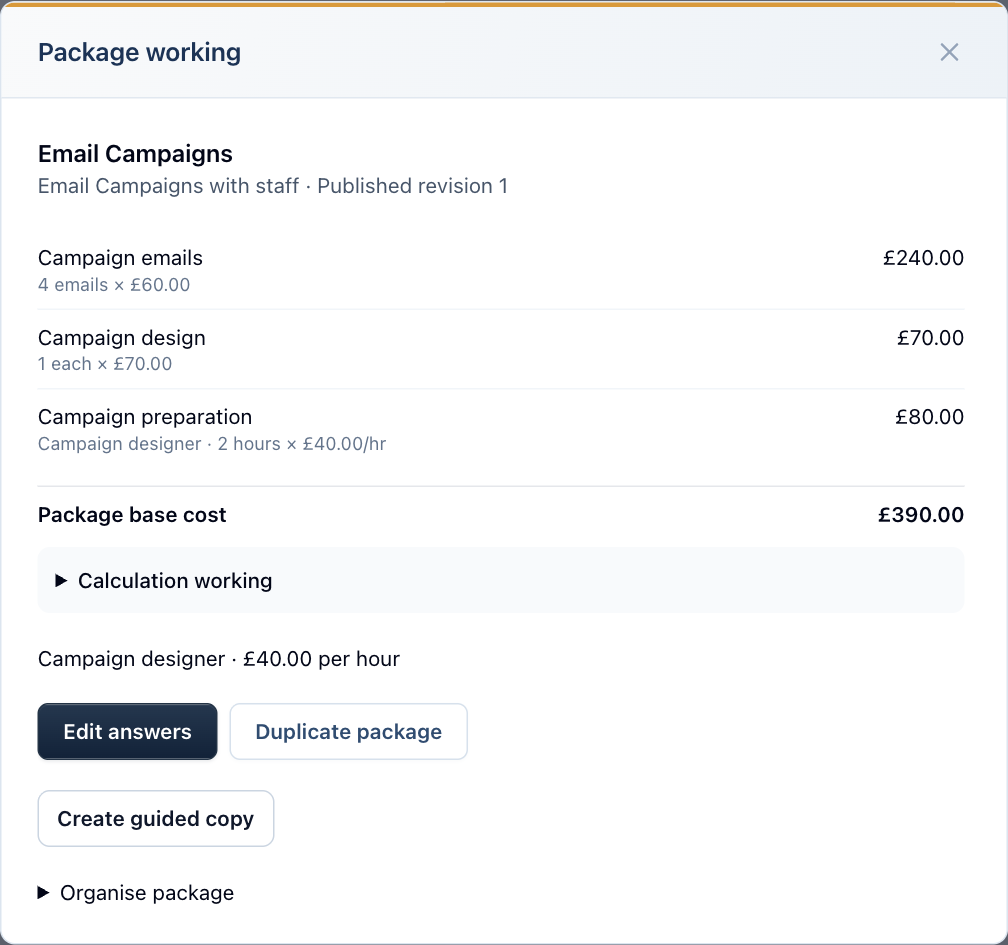
You can tailor the customer wording, record a reason for a quantity or rate override, duplicate the package, or detach it as ordinary items. Later library revisions and staff-rate changes apply to future uses. An issued quote keeps its original pricing.
Open Client View to see the campaign as a single scope with its description and price. To build your own example, open the guided template library in CostForge.